Image Loading Optimization
Image delivery on the web is a four-axis optimization: load the LCP candidate fast, defer everything else, ship the smallest format the client can decode, and reserve space before pixels arrive so the page does not jump under the user’s finger. Almost every “slow site” investigation that ends in an image fix lands on one of those four axes; the platform now exposes good primitives for each, but they are easy to combine wrong.
This article is for senior frontend engineers who want a single mental model for the mechanics — the preload scanner, loading, fetchpriority, <picture>, srcset/sizes, and the implicit aspect-ratio mapping — plus the trade-offs you only see at production scale (CDNs, format negotiation, placeholders, accessibility).
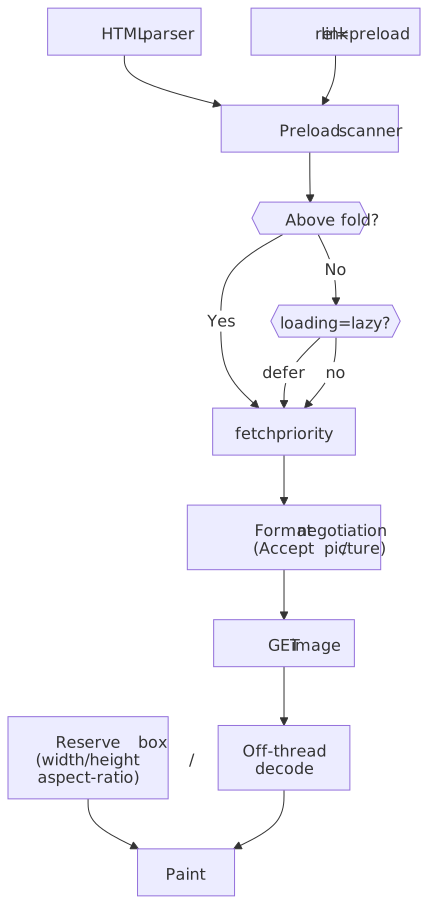
Mental model
Three browser subsystems and two HTML attributes do almost all of the work. Hold these in your head and the rest of the article is a tour of failure modes.
| Subsystem | What it does | What you control |
|---|---|---|
| Preload scanner | Speculatively parses HTML ahead of the main parser to discover src, srcset, <link rel=preload>, etc. (web.dev) |
Anything in HTML — not in CSS or runtime JS |
| Resource scheduler | Assigns each fetch a priority based on resource type, position, and fetchpriority (WHATWG) |
fetchpriority="high", <link rel=preload> |
| Layout / paint pipeline | Reserves a box for each replaced element, paints once decode completes (web.dev — CLS) | width/height attributes, CSS aspect-ratio |
The two attributes that gate the most user-visible behavior:
loading="lazy"— defers the request until the image is “about to intersect the viewport”. The exact distance is browser-defined and varies by connection (WHATWG HTML — lazy loading attribute).fetchpriority="high|low|auto"— a hint, not a directive, that nudges the resource scheduler (web.dev — Fetch Priority).
Important
The single highest-impact rule: never loading="lazy" on the LCP image, and always declare its dimensions. Everything else in this article tunes the long tail.
The constraint surface
Images compete for every constrained resource on the page-load path:
| Resource | Budget | Image impact |
|---|---|---|
| Network connections | 6 per origin on HTTP/1.1 (Chromium, hardcoded1) | Large images block other GETs on the same host |
| Frame budget | ~16.7 ms at 60 Hz | Synchronous decode of a hero image easily blows it |
| Memory | Mobile devices commonly cap a process at hundreds of MB | A 4K image in RGBA is ~33 MB uncompressed (3840 × 2160 × 4 bytes2) |
| Bandwidth | Variable; the 90th percentile site ships > 5 MB of images3 | Dominant payload on most pages |
Three goals are in tension and you can only optimize for two at a time per image:
| Goal | Lever | What it costs |
|---|---|---|
| Fast LCP | Preload, fetchpriority="high" |
Bandwidth and contention for other above-the-fold assets |
| Bandwidth efficiency | loading="lazy", modern formats, responsive variants |
Slightly later off-screen image discovery, server/build complexity |
| Layout stability | width/height or aspect-ratio |
Markup discipline; sometimes cropping |
The right answer is per-image, not per-site. The decision tree later in § Priority hints and preloads makes it concrete.
Native lazy loading
loading="lazy" defers the request until the browser’s heuristic decides the image is close enough to the viewport to matter. It is the simplest, most cache-friendly option and is correct for every below-the-fold image that is not the LCP candidate.
<img src="photo.jpg" loading="lazy" width="640" height="480" alt="Description" />What “about to intersect” actually means
The HTML spec deliberately leaves the threshold to the user agent (WHATWG — will lazy load image steps). Each engine picks its own:
| Browser | Behavior | Source |
|---|---|---|
| Chromium | Distance from viewport: 1250 px on 4G, 2500 px on slow connections (down from 3000/4000 in July 2020) | web.dev, pulled from settings.json5 |
| Firefox | Loads when the image intersects the viewport (effectively zero margin); configurable via dom.image-lazy-loading.root-margin.* prefs |
Bugzilla 1618240 — RESOLVED WORKSFORME |
| Safari | ”When the user scrolls near the image” — no public threshold; in practice closer to Firefox’s behavior than Chromium’s | WebKit blog — Safari 15.4 |
Treat the threshold as opaque. If you need a guaranteed margin (e.g. “load the next two screens of an infinite feed”), drop down to Intersection Observer — see the next section.
Browser support is universal in modern browsers: Chrome 77+, Edge 79+, Firefox 75+, Safari 15.4+ (web.dev).
Failure modes
Caution
Lazy-loading the LCP image directly delays it. The browser must complete layout to decide the image is in-viewport before requesting it; that pushes the GET past the critical path and tanks LCP. The web.dev page on lazy loading calls this out explicitly.
Two more sharp edges that bite in production:
- Missing dimensions promote to eager. Without
width/height, Chromium cannot determine whether the image fits in the initial viewport and may load it immediately, defeatingloading="lazy". Always declare dimensions. - Print stylesheets defer too. Lazy images may not render in print. If print fidelity matters, force eager via JS before
window.print(). display: noneis implementation-defined. Engines disagree on whether to skip the request. Don’t rely onloading="lazy"as a way to suppress hidden images; gate the markup itself.
Browsers without support simply ignore the attribute and load eagerly — a safe degradation.
Intersection Observer for finer control
Native lazy loading covers ~95% of cases. Reach for Intersection Observer when you need behavior the platform doesn’t expose: a custom rootMargin, lazy loading inside a non-viewport scroll container, or pre-warming images in the user’s scroll direction.
const loaded = new WeakSet<HTMLImageElement>()export function lazyLoadImages(options: IntersectionObserverInit = {}) { const observer = new IntersectionObserver( (entries) => { for (const entry of entries) { if (!entry.isIntersecting) continue const img = entry.target as HTMLImageElement const src = img.dataset.src if (src && !loaded.has(img)) { img.src = src loaded.add(img) observer.unobserve(img) } } }, { rootMargin: "200px 0px", threshold: 0.01, ...options, }, ) document.querySelectorAll<HTMLImageElement>("img[data-src]").forEach((img) => observer.observe(img)) return observer}| Capability | loading="lazy" |
Intersection Observer |
|---|---|---|
| Distance threshold | Browser-defined, opaque | rootMargin — any value |
| Visibility trigger | Browser-defined | threshold — 0 to 1 |
| Scroll root | Viewport only | Any scrollable element |
| Connection awareness | Chrome only | Manual via navigator.connection |
| JS required | No | Yes |
If you go this route, set the placeholder src to a 1×1 transparent SVG (or omit it and rely on data-src) so the browser does not issue a request before the observer fires.
Responsive images: srcset and sizes
srcset + sizes lets the user agent pick the smallest candidate that satisfies the rendered width and DPR — the single biggest win for image bandwidth on a multi-device site.
<img srcset="photo-320w.jpg 320w, photo-640w.jpg 640w, photo-1280w.jpg 1280w, photo-1920w.jpg 1920w" sizes="(max-width: 600px) 100vw, (max-width: 1200px) 50vw, 33vw" src="photo-1280w.jpg" alt="Description" width="1920" height="1080"/>How the browser resolves a candidate
The selection algorithm is in the WHATWG sizes attribute section. The shape of it:
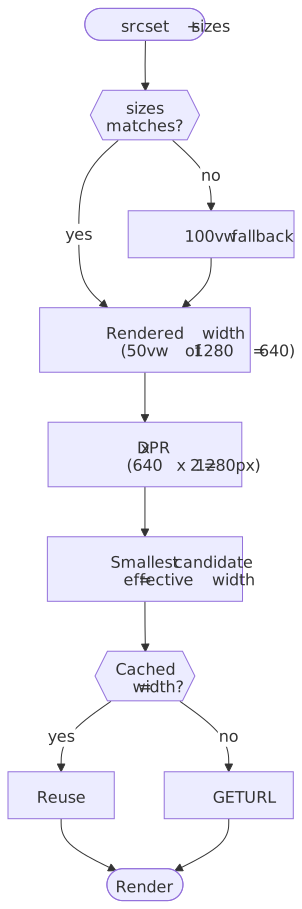
Two consequences worth internalizing:
sizesis required when you usewdescriptors. If you omit it, the browser assumes100vwand almost always overshoots, which wastes the entire point ofsrcset. The spec defines this default explicitly.- The browser will reuse a larger cached candidate. Once it has the 1920w version, it will not re-request the 640w version on a smaller viewport. This means
srcsetsaves bytes on first load, not on subsequent navigations.
Resolution switching vs art direction vs format switching
Three separate use cases, three different markup patterns:
| Goal | Markup | Why |
|---|---|---|
| Same image, different sizes | <img srcset="...w" sizes="..."> |
One alt text, one composition; UA picks the variant |
| Same image, different DPRs | <img srcset="hero@1x 1x, hero@2x 2x"> (with explicit DPR descriptors) |
Cleaner than w when you really mean DPR |
| Different compositions per breakpoint | <picture><source media="..."></picture> |
Crops, aspect ratios, or wholly different images |
| Different formats (AVIF, WebP) | <picture><source type="..."></picture> |
Server-side branchless format negotiation |
<picture> evaluates <source> elements top-to-bottom and uses the first one whose media matches and whose type is supported (WHATWG). The fallback <img> carries alt, width, height, and the default src.
Format negotiation: AVIF, WebP, JPEG XL
The format gap is large enough that picking the right one is usually a bigger win than tuning loading. Compression numbers come from the original Google and Netflix studies; in practice they vary by content type, so always validate on your own corpus.
| Format | Vs. JPEG (typical) | Browser support | Best for |
|---|---|---|---|
| AVIF | ~50 % smaller at equivalent quality (Netflix Tech Blog) | Chrome 85+, Firefox 93+, Safari 16.4+ (caniuse) | Photos, complex images |
| WebP | ~25–34 % smaller (Google study) | Chrome 23+, Firefox 65+, Safari 14+ (caniuse) | Broad compatibility floor |
| JPEG XL | ~30–60 % smaller (informal) | Safari 17+ (WebKit); returned to Chrome 145 (Feb 2026) behind chrome://flags/#enable-jxl-image-format via a memory-safe Rust decoder (Chrome Status) |
Worth shipping behind <picture> + image/jxl for Safari today; Chrome rollout is flag-gated, so always provide an AVIF / WebP / JPEG fallback |
| JPEG | Baseline | Universal | Fallback |
Note
AVIF decode is meaningfully slower than JPEG decode on low-end mobile, especially for very large images. The bandwidth win usually outweighs it on the first-load LCP path, but if your hero image is 4K AVIF on a $50 Android, profile before you assume.
Two ways to deliver multiple formats
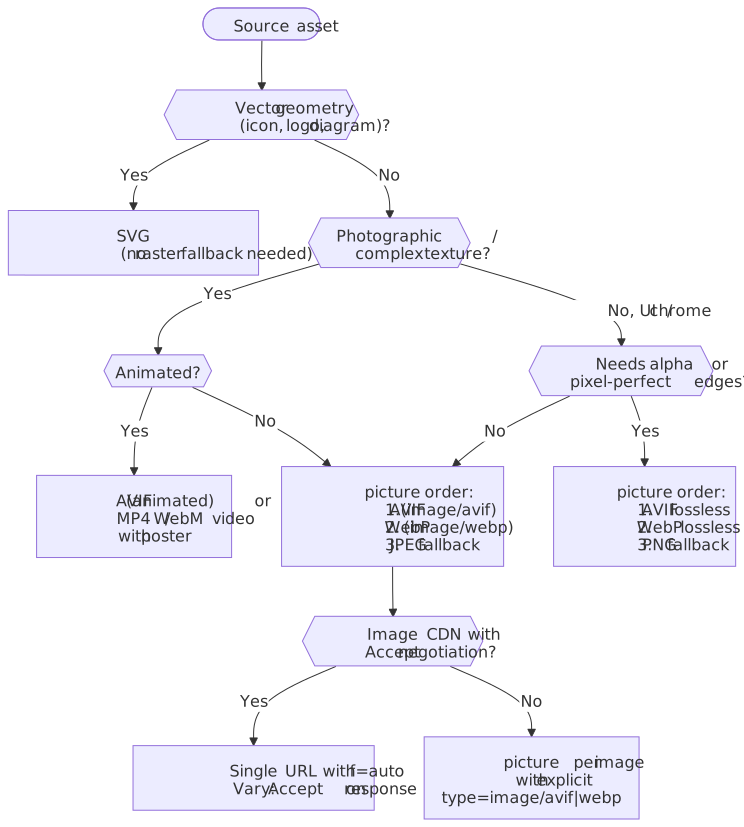
Approach 1 — <picture> with type (markup-driven, CDN-agnostic):
<picture> <source srcset="photo.avif" type="image/avif" /> <source srcset="photo.webp" type="image/webp" /> <img src="photo.jpg" alt="Description" width="800" height="600" /></picture>Sources are tried top-to-bottom; put the most efficient first. Each source can also carry its own srcset and sizes.
Approach 2 — Accept-header content negotiation (server- or CDN-driven). Chrome sends Accept: image/avif,image/webp,... and the server returns the best match. This requires Vary: Accept so caches do not serve the wrong format to the wrong client (RFC 9110 § 12.5.5).
| Approach | Control | Complexity | CDN compat |
|---|---|---|---|
<picture> with type |
Client-side | Markup per image | Universal — every URL is its own cache key |
Accept negotiation |
Server-side | Server / CDN config + Vary: Accept |
Requires Vary-aware caches; many image CDNs do this for you |
Most teams should use <picture> for one-offs and let the image CDN do Accept negotiation for everything else.
Picking a format from a single source
The decision is mostly mechanical once you classify the asset.
Priority hints and preloads
fetchpriority and <link rel="preload"> are how you tell the resource scheduler what matters. fetchpriority is a hint, not a directive: it influences priority but does not guarantee it. The two work together.
<!-- LCP hero: load immediately, high priority --><img src="hero.jpg" fetchpriority="high" width="1920" height="1080" alt="Hero" /><!-- Decorative: defer and deprioritize --><img src="decoration.jpg" loading="lazy" fetchpriority="low" alt="" />Combinations and what they mean:
loading |
fetchpriority |
Behavior |
|---|---|---|
eager (default) |
high |
Immediate fetch, high priority. Default for the LCP candidate. |
eager |
low |
Immediate fetch, deprioritized. Use for above-the-fold-but-not-critical assets. |
lazy |
high |
Deferred, then high once near viewport. Rarely useful — see web.dev caveat below. |
lazy |
low |
Deferred, low priority. The right default for footer / decorative images. |
Note
web.dev points out that loading="lazy" fetchpriority="high" is mostly redundant: when the lazy image becomes eligible, the browser would have raised its priority anyway (Fetch Priority article).
Preloading the LCP image
When the LCP image is referenced from CSS, JS, or late in the HTML, the preload scanner cannot find it in time. A <link rel="preload"> in <head> makes the request kick off during HTML parsing instead.
<link rel="preload" as="image" href="hero.jpg" fetchpriority="high" />For responsive heroes, preload the same srcset/sizes the <img> will use — otherwise you race two GETs:
<link rel="preload" as="image" imagesrcset="hero-400.jpg 400w, hero-800.jpg 800w, hero-1200.jpg 1200w" imagesizes="(max-width: 600px) 100vw, 50vw" fetchpriority="high"/>imagesrcset and imagesizes are standardized on <link rel="preload" as="image"> and have the same semantics as on <img> (web.dev — Preload responsive images). Omit href so non-supporting browsers do not download a fallback you do not want.
What the waterfall actually looks like
The mechanism is easier to internalize as a timeline. Without a preload, the LCP image is not discovered until the parser reaches the <img> deep in the body — and any blocking CSS in <head> widens that gap. With <link rel="preload" as="image" fetchpriority="high"> the preload scanner queues the request alongside the first CSS / font fetches, so it can finish well before first contentful paint instead of after it.
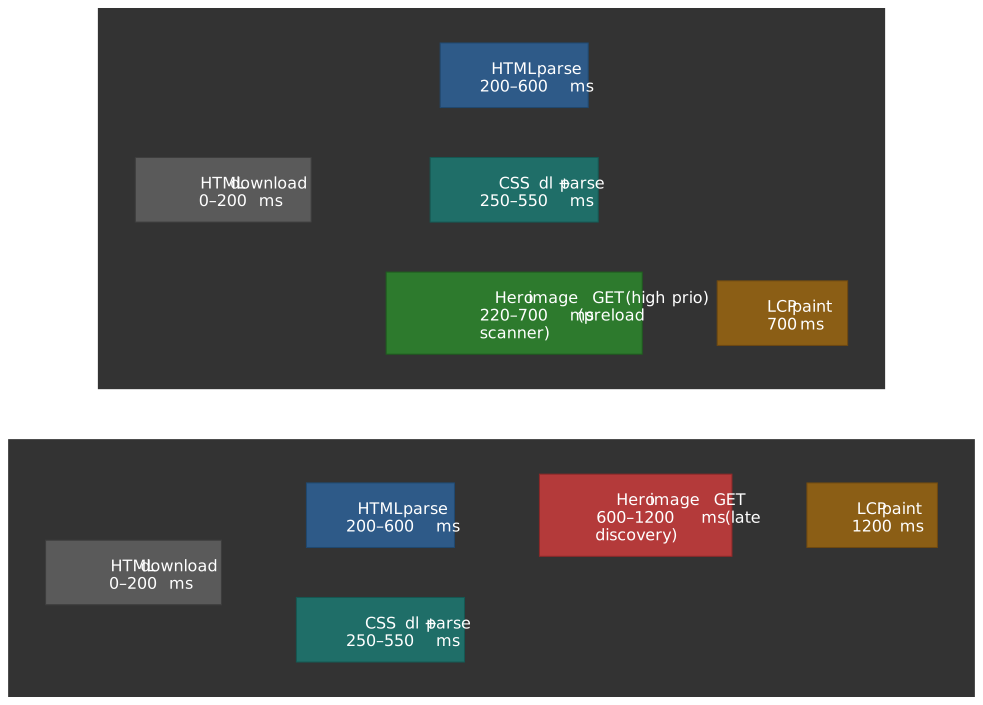
In production, a single fetchpriority="high" on the LCP <img> (or matching <link rel="preload">) commonly moves LCP by 0.5–2 s when the image was being discovered late (web.dev — Fetch Priority). It is a hint, so do not stack it on more than the single LCP element — handing out high to many resources just demotes them all back to neutral.
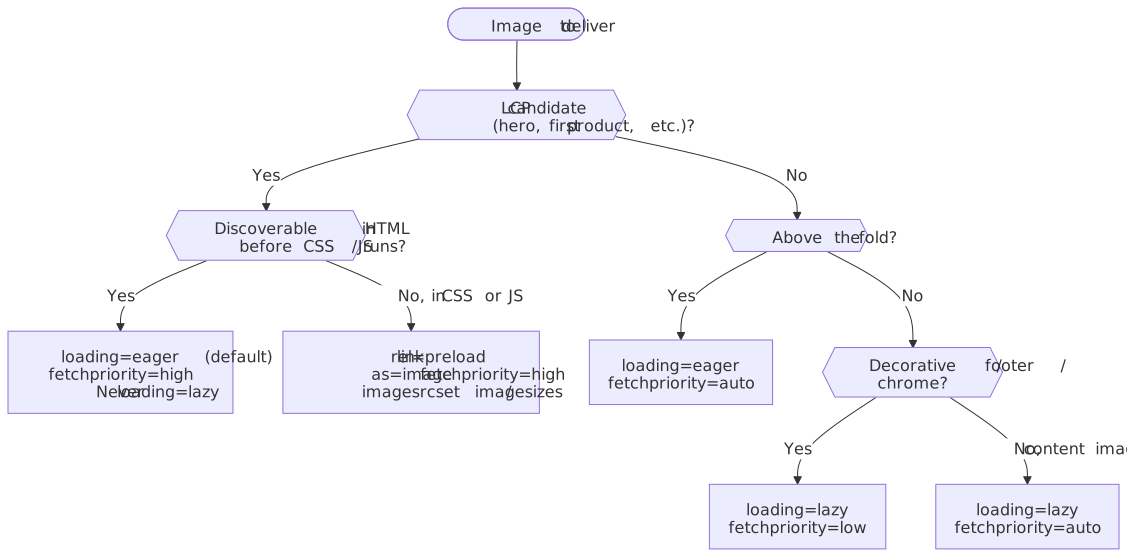
Decision tree
For each image on a page, the right combination falls out of three editorial questions: is it the LCP candidate, is it above the fold, and is it decorative?
Preventing layout shift
Cumulative Layout Shift is a Core Web Vital with a “good” threshold of 0.1 (web.dev — Web Vitals). Images without reserved space are the dominant cause of image-related CLS.
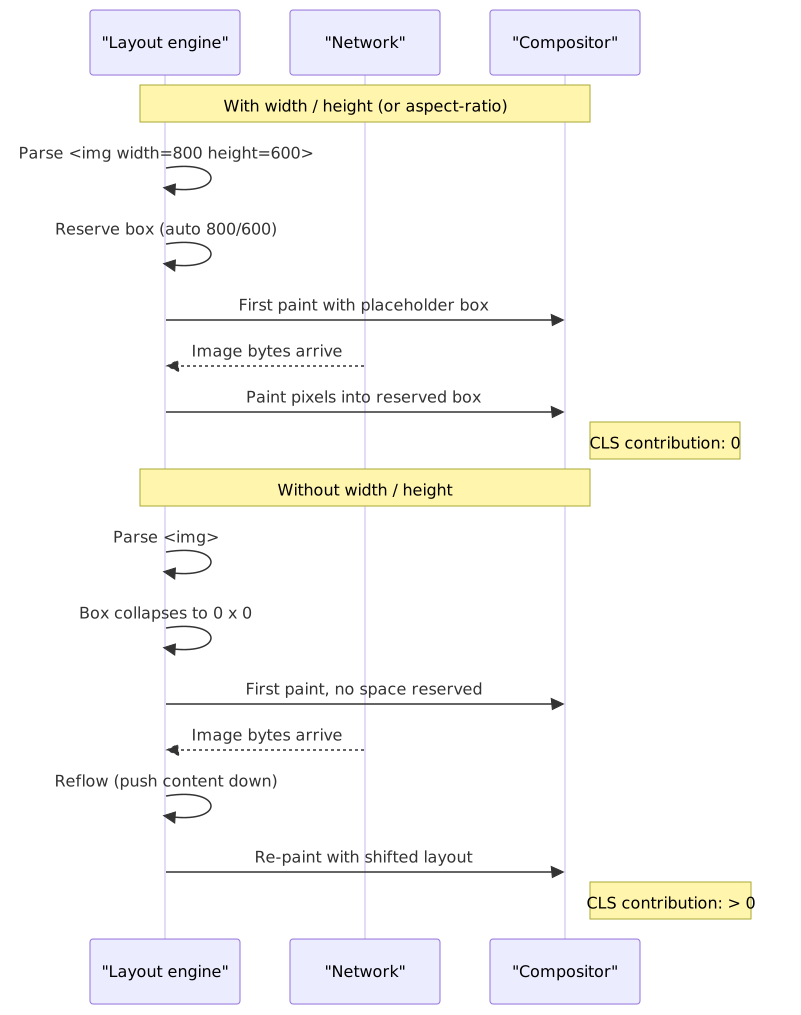
How the implicit aspect ratio actually works
A long-standing piece of folklore says modern browsers add aspect-ratio: attr(width) / attr(height) to the UA stylesheet. They do not — attr() does not work on non-content properties in any current browser (Jake Archibald, Chrome team).
What actually happens, per the HTML rendering spec:
If the element has both a
widthandheightattribute … the user agent is expected to use the parsed dimensions as a presentational hint for theaspect-ratioproperty of the formauto w / h.
The auto keyword matters. For replaced elements like <img>, once the natural aspect ratio is known (i.e. the image bytes have arrived), it overrides the hint. So if you specify width="4" height="3" on a 16:9 image, the browser uses 4:3 to reserve space initially, then corrects to 16:9 once the image loads — much better than a stretched render. This shipped in Chrome and Firefox in 2019 and Safari 14 in late 2020.
Solution 1 — width and height attributes
<img src="photo.jpg" width="800" height="600" alt="Description" />This is the right default for content images. Combine with width: 100%; height: auto; in CSS to make it responsive without losing the reserved space.
Solution 2 — CSS aspect-ratio
.responsive-image { width: 100%; height: auto; aspect-ratio: 16 / 9;}Use when:
- The intrinsic dimensions are not known at markup time (e.g. user-uploaded images without metadata in the API response).
- You want a consistent layout aspect across a gallery, regardless of the source image.
- The aspect ratio is a design constraint and you are willing to crop with
object-fit: cover.
Browser support: Chrome 88+, Firefox 89+, Safari 15+ (MDN).
Solution 3 — padding-bottom hack
Pre-2021 baseline browsers needed a padding-bottom: 56.25% wrapper to reserve aspect ratio. There is no reason to write this today; CSS aspect-ratio is supported everywhere modern lazy loading is.
Measuring CLS
new PerformanceObserver((list) => { for (const entry of list.getEntries()) { if (!entry.hadRecentInput) { console.log("CLS contribution:", entry.value, entry.sources) } }}).observe({ type: "layout-shift", buffered: true })entry.sources is the most useful field — it tells you which DOM node moved, so you can attribute the shift to a specific image.
Placeholder strategies
Placeholders smooth perceived latency between layout reservation and pixel paint. Pick by payload-vs-fidelity, not by aesthetic.
| Strategy | Payload | JS required | Visual fidelity |
|---|---|---|---|
| Dominant color | ~7 bytes (hex) | No | Low |
| LQIP (tiny base64) | 200–500 bytes | No | Medium |
| BlurHash | ~20–30 bytes | Yes (decode + canvas) | Medium |
| CSS skeleton | 0 (CSS only) | No | Structural only |
Dominant color
Extract a single representative color server-side or at build-time, set it as background-color on the <img>:
<img src="photo.jpg" style="background-color: #d4a574;" alt="Description" width="800" height="600" />Lowest-effort option. Good for grids where the visual loss of detail is invisible.
LQIP (low-quality image placeholder)
Inline a heavily compressed thumbnail as a data URI. 20–40 px wide, blurred via CSS filter: blur(...). The user sees a recognizable approximation almost immediately. Cloudinary’s LQIP write-up covers the encoding choices.
BlurHash
BlurHash is a ~20-byte string that decodes into a soft gradient via a small canvas operation. The result looks better than a flat color but worse than LQIP. Use when you need a low-payload placeholder that travels in JSON API responses.
import { decode } from "blurhash"const hash = "LEHV6nWB2yk8pyo0adR*.7kCMdnj"const pixels = decode(hash, 32, 32)const canvas = document.createElement("canvas")canvas.width = 32canvas.height = 32const ctx = canvas.getContext("2d")!const imageData = ctx.createImageData(32, 32)imageData.data.set(pixels)ctx.putImageData(imageData, 0, 0)img.style.backgroundImage = `url(${canvas.toDataURL()})`img.style.backgroundSize = "cover"Skeleton
CSS-only animated placeholder, sized to the reserved box. Good for card grids where you do not have per-image color metadata and BlurHash adds too much pipeline work.
.image-skeleton { background: linear-gradient(90deg, var(--skeleton-base) 25%, var(--skeleton-highlight) 50%, var(--skeleton-base) 75%); background-size: 200% 100%; animation: shimmer 1.5s infinite;}@keyframes shimmer { 0% { background-position: 200% 0; } 100% { background-position: -200% 0; }}Image CDNs
An image CDN moves resizing, format conversion, and quality tuning out of the build pipeline and into the URL. Most teams running serious image traffic should be on one — the operational savings dwarf the per-asset cost.
Capabilities
| Capability | Why it matters |
|---|---|
| On-demand resize | One source asset, infinite delivery sizes; no build-time fan-out |
| Format negotiation | Serve AVIF / WebP / JPEG by Accept header without per-image markup |
| Quality optimization | Adjust compression by content type, content-aware encoders |
| Edge caching | Variants cached close to the user; cold-start cost amortizes quickly |
| URL-based transforms | Reproducible without infra access |
URL pattern
https://cdn.example.com/images/photo.jpg?w=800&h=600&f=webp&q=75| Parameter | Purpose |
|---|---|
w |
Width |
h |
Height |
f |
Format (webp, avif, auto) |
q |
Quality (1–100) |
Drop-in with responsive images
<img srcset=" https://cdn.example.com/photo.jpg?w=400 400w, https://cdn.example.com/photo.jpg?w=800 800w, https://cdn.example.com/photo.jpg?w=1200 1200w " sizes="(max-width: 600px) 100vw, 50vw" src="https://cdn.example.com/photo.jpg?w=800" alt="Description" width="1200" height="800"/>f=auto lets the CDN pick the best format from the Accept header. Make sure the CDN sets Vary: Accept on the response so downstream caches do not poison.
Cache strategy
| Header | Value | Purpose |
|---|---|---|
Cache-Control |
public, max-age=31536000, immutable |
Long cache; images at content-hashed URLs do not change |
Vary |
Accept (only when format-negotiating) |
Cache per format (RFC 9110 § 12.5.5) |
ETag |
Hash of source + transforms | Conditional revalidation |
Invalidation strategies:
- Content-hashed filenames —
photo-a1b2c3.jpg. Simplest; no CDN purge required. - Version query string —
photo.jpg?v=2. Cheap, but cache-key handling depends on the CDN. - Purge API — vendor-specific; use sparingly.
Vendors
| Vendor | Notable |
|---|---|
| Cloudinary | Largest transformation API, content-aware optimization |
| Imgix | Performance focus, strong responsive image tooling |
| Cloudflare Images | Tight integration with the Cloudflare CDN |
| Fastly Image Optimizer | Edge compute for custom transform logic |
| Vercel / Next.js Image | Framework-native; Vercel hosting only |
Patterns from real systems
Instagram — prefetch the next page
Instagram’s web team documented their image-loading pipeline (Glenn Conner, Instagram Engineering): srcset to right-size each image, prioritized prefetch of the next page of feed posts, and <link rel="preload"> for above-the-fold media. Progressive JPEG remains in their delivery mix because perceived performance on slow links matters more than peak bytes saved by AVIF.
Pinterest — constrained aspect ratio for masonry
Pinterest’s masonry feed depends on a predictable aspect ratio per card. The platform specifies a 2:3 standard pin (e.g. 1000 × 1500); pins outside that ratio are truncated in the feed. The lesson is structural: enforce an aspect-ratio contract at the data layer so the layout engine never has to reflow.
Unsplash — store full, serve resized
Unsplash stores high-resolution originals and resizes on the edge. Third parties consume the same CDN with query-param transforms — imix.net/photo-xxx?w=1200&fit=crop. The pattern generalizes: for any image you might re-crop, store the source at maximum fidelity and let the CDN absorb the variant explosion.
Figma — bypass the DOM
For images at design-tool scale (100K+ objects, real-time collaboration), DOM-based image handling is the bottleneck. Figma renders to <canvas> via WebGL, with a recently announced WebGPU upgrade and a custom shader translation pipeline. Worth knowing exists; not worth reaching for unless you’re building a similarly extreme product.
Operational implications
LCP optimization checklist
- Identify the LCP element in the field, not in your local DevTools —
web-vitalsattributes LCP to a specific node in production. - If it is an image, preload it with
fetchpriority="high"and the samesrcset/sizesthe<img>will use. - Never
loading="lazy"it. This is the single most common LCP regression we see in code review. - Serve the smallest sufficient variant — usually AVIF or WebP at
q=75–80for hero photos. - Avoid CSS background-image for the LCP element. The preload scanner cannot find it; you pay a full stylesheet round-trip before the request fires.
Monitoring
import { onLCP, onCLS, onINP } from "web-vitals"onLCP((metric) => { const entry = metric.entries[metric.entries.length - 1] as LargestContentfulPaint | undefined if (entry?.element?.tagName === "IMG") { console.log("LCP image:", (entry.element as HTMLImageElement).src) console.log("LCP time:", metric.value) }})onCLS((metric) => { console.log("CLS:", metric.value, metric.entries)})Image size budget
Treat as starting points, not policy:
| Viewport | Total images | LCP target |
|---|---|---|
| Mobile (360 px) | < 500 KB | < 100 KB |
| Tablet (768 px) | < 1 MB | < 200 KB |
| Desktop (1920 px) | < 2 MB | < 400 KB |
decoding attribute
Off-main-thread decoding is the default in Chromium (Addy Osmani — Image Decoding in Blink) and other modern engines. The decoding attribute primarily controls whether the browser is allowed to paint-hold an in-DOM image while async decode finishes:
| Value | Behavior | When to use |
|---|---|---|
async |
Decode off-thread; do not block adjacent updates on its completion | The right default for most images |
sync |
Wait for decode before showing this paint, to keep image in lockstep with surrounding content | Animations/sprites where a partial frame would tear |
auto (default) |
UA decides | Leave as default unless you have a reason to override |
If you need the image to be fully decoded before insertion, prefer the HTMLImageElement.decode() Promise API — it gives you a hook to await without holding up other paints.
content-visibility: auto for long image feeds
For long, scroll-heavy pages with many off-screen images (feeds, archives, gallery grids), wrapping each card in content-visibility: auto lets the browser skip layout, paint, and image decode for off-screen subtrees until they enter the viewport (CSS Containment Module Level 2, web.dev).
.feed-card { content-visibility: auto; contain-intrinsic-size: auto 320px;}contain-intrinsic-size is mandatory — without it the off-screen boxes collapse to zero and you reintroduce the same layout-shift problem width/height solve for individual images. This composes with loading="lazy": native lazy loading skips the network fetch, content-visibility: auto additionally skips the rendering work for already-loaded images you have scrolled past.
Connection-aware delivery
type Quality = "high" | "medium" | "low"export function getImageQuality(): Quality { const c = (navigator as Navigator & { connection?: { saveData: boolean; effectiveType: string } }).connection if (!c) return "medium" if (c.saveData) return "low" if (c.effectiveType === "4g") return "high" if (c.effectiveType === "3g") return "medium" return "low"}Caveats: navigator.connection is not in Safari; effectiveType is itself a heuristic. Treat it as a hint, not a contract.
Accessibility
<!-- Informative image: describe content --><img src="chart.png" alt="Q4 revenue increased 23% to $4.2M" width="600" height="400" /><!-- Decorative image: empty alt --><img src="divider.png" alt="" width="600" height="2" /><!-- Complex image: detailed description --><img src="architecture.png" alt="System architecture diagram" aria-describedby="arch-details" width="800" height="500"/><p id="arch-details">The system consists of three layers...</p>The WAI Image Tutorial is the canonical decision tree for alt. Two often-missed patterns:
@media (prefers-reduced-motion: reduce) { .image-transition { transition: none; } .skeleton-loader { animation: none; background: var(--skeleton-base); }}@media (forced-colors: active) { .image-placeholder { forced-color-adjust: none; background-color: Canvas; border: 1px solid CanvasText; }}forced-colors (Windows High Contrast Mode) is the case where your placeholder backgrounds will silently disappear unless you explicitly opt out.
Practical takeaways
In rough order of impact:
- Always reserve space.
width/heighton every<img>, or CSSaspect-ratiowhen intrinsic dimensions are unknown. - Preload the LCP image.
<link rel="preload" as="image" fetchpriority="high">, withimagesrcset/imagesizesif responsive. Neverloading="lazy"it. - Serve modern formats through
<picture>orf=autoon a CDN. AVIF for photos, WebP as the floor. - Right-size with
srcset/sizes. Always setsizeswhen you usewdescriptors. - Lazy-load the rest with native
loading="lazy". Drop to Intersection Observer only when you need a custom threshold or scroll root. - Pick a placeholder strategy that matches the API surface. Dominant color in JSON, BlurHash if you need detail, skeletons for chrome.
- Push variant generation onto a CDN. It eliminates an entire class of build-time complexity.
Appendix
Prerequisites
- HTML image element semantics
- CSS layout fundamentals
- HTTP caching basics (RFC 9111)
- Core Web Vitals (LCP, CLS, INP)
References
- WHATWG HTML — Images — authoritative spec for
srcset,sizes,loading,decoding - WHATWG HTML — Fetch priority attribute
- WHATWG HTML — Mapping to aspect-ratio
- CSS Sizing Level 4 —
aspect-ratio - web.dev — Browser-level image lazy loading
- web.dev — Optimize LCP
- web.dev — Optimize CLS
- web.dev — Fetch Priority
- web.dev — Preload responsive images
- web.dev —
content-visibility - Chrome Status — JPEG XL decoding (image/jxl) in Blink
- Jake Archibald — Avoiding
<img>layout shifts - Addy Osmani — Image Decoding in Blink
- Netflix Tech Blog — AVIF for Next-Generation Image Coding
- BlurHash
- Cloudinary — LQIP explained
Footnotes
-
Chromium ships a hardcoded
kMaxSocketsPerGroup = 6for HTTP/1.1; see the long-running configurability discussion at Chromium issue 40580943. ↩ -
web.dev — Choose the correct level of compression walks through the bytes-per-pixel math. ↩
-
HTTP Archive — Page Weight reports that images remain the largest payload on most sites. ↩