Design a Drag and Drop System
Building drag and drop interactions that work across input devices, handle complex reordering scenarios, and maintain accessibility—the browser APIs, architectural patterns, and trade-offs that power production implementations in Trello, Notion, and Figma.
Drag and drop appears simple: grab an element, move it, release it. In practice, it requires handling three incompatible input APIs (mouse, touch, pointer), working around significant browser inconsistencies in the HTML5 Drag and Drop API, providing keyboard alternatives for accessibility, and managing visual feedback during the operation. This article covers the underlying browser APIs, the design decisions that differentiate library approaches, and how production applications solve these problems at scale.
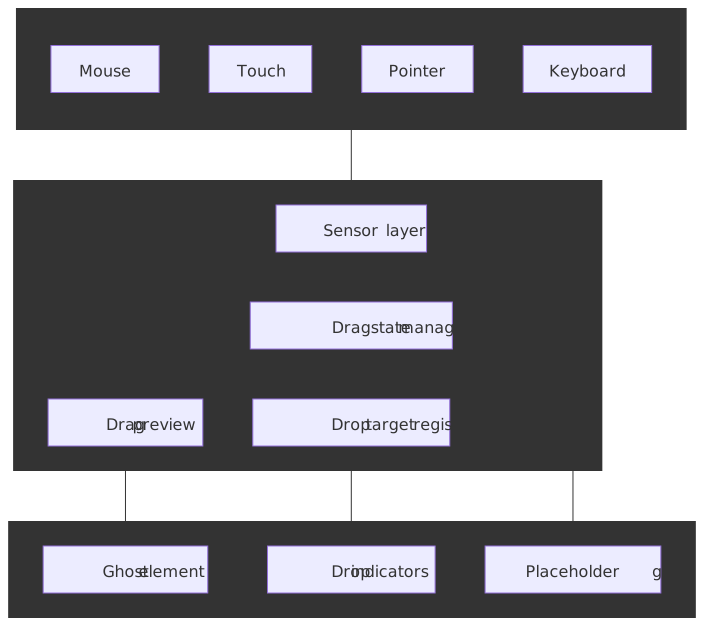
Abstract
Drag and drop systems must unify three input models while providing an accessible non-drag alternative. The core mental model:
-
Native HTML5 DnD has critical limitations: The WHATWG Drag and Drop API works for mouse and pen input but does not fire drag events for touch on Chrome, Firefox, or Safari1. The
DataTransferobject is governed by a strict three-mode lifecycle (read/write duringdragstart, protected during intermediate events, read-only duringdrop)2, and historic browser drift around drag-image handling and event ordering makes raw API usage impractical for production. -
Pointer Events unify input devices: The W3C Pointer Events Level 2 Recommendation (with Level 3 Candidate Recommendation in flight) gives a single hardware-agnostic event stream for mouse, touch, and pen. Pointer-Events-based libraries (dnd-kit, React Aria) sidestep HTML5 DnD entirely; the trade-off is losing OS-level features like cross-window drag.
-
The two camps split on the API question, not the framework: HTML5 DnD wrappers (react-dnd, Sortable.js, Pragmatic Drag and Drop) inherit native cross-window drag and file drops but inherit native quirks too. Pointer Events implementations (dnd-kit, React Aria) get touch and keyboard for free but cannot accept files dragged from the OS without a separate native code path.
-
Accessibility means a single-pointer alternative, not just keyboard: WCAG 2.5.7 Dragging Movements (Level AA, added in WCAG 2.2) specifically requires a non-drag mechanism operable by a single pointer. Keyboard support is required by WCAG 2.1.1 but does not satisfy 2.5.7 on its own — you must also expose a click/tap path (move buttons, context menu, etc.).
| Approach | Browser API foundation | Touch | OS-level features (cross-window, files) | Built-in keyboard a11y | Notes |
|---|---|---|---|---|---|
| Native HTML5 DnD wrapper | HTML5 DnD | Needs polyfill | Yes | Manual | react-dnd, Sortable.js, Pragmatic |
| Pointer Events implementation | Pointer Events | Built-in | No | Usually built-in | dnd-kit, React Aria, custom |
| Hybrid | HTML5 DnD + Pointer/Touch glue | Yes | Yes | Manual | Older Sortable.js + custom touch backends |
The Challenge
Browser API Fragmentation
The web has three overlapping APIs for pointer input, each with different capabilities and browser support.
HTML5 Drag and Drop API (WHATWG spec): Designed for mouse-based desktop interaction. Events: dragstart, drag, dragenter, dragover, dragleave, drop, dragend. The DataTransfer object carries data between drag source and drop target.
Touch Events API (W3C spec, now considered legacy): Designed for touchscreens. Events: touchstart, touchmove, touchend, touchcancel. Provides multi-touch support via TouchList collections.
Pointer Events API (W3C spec): Unified model for all pointing devices. Events mirror mouse events with pointer prefix. The pointerType property indicates device: "mouse", "touch", or "pen".
The fundamental problem: HTML5 Drag and Drop events do not fire for touch input on Chrome, Firefox, or Safari1. Native drag is mouse- and pen-only; touch users get nothing without an explicit second code path or a polyfill such as drag-drop-touch-js/dragdroptouch.
HTML5 DnD API Quirks
The native API has behavior differences that break naive cross-browser implementations.
DataTransfer is governed by a three-mode lifecycle. The WHATWG drag data store mode is, in order:
| Mode | Active during | What you can do |
|---|---|---|
| read/write | dragstart |
Add data with setData(), set drag image, configure effectAllowed |
| protected | drag, dragenter, dragover, dragleave, dragend |
Read dataTransfer.types (format names) but not payloads; calls to setData/getData are silently ignored |
| read-only | drop |
Call getData() to read payloads; setData() is ignored |
Practically, this means: set everything you need in dragstart, gate drop targets in dragover by inspecting dataTransfer.types, and read payloads in drop. The protected mode exists to stop a malicious page from spying on data the user is dragging in from another origin or another application2.
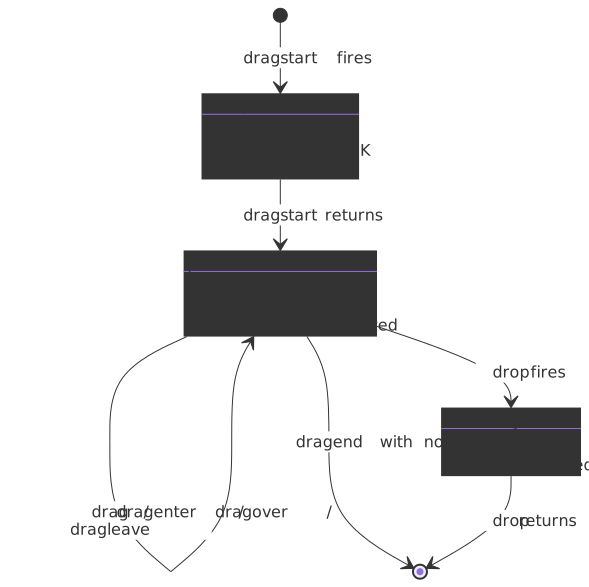
The spec pins drop before dragend, but engines historically drifted. Step 2 of the WHATWG drag-and-drop processing model fires drop at the target; step 3 fires dragend at the source. Older Chrome/Safari builds fired dragend before drop3, and the order can still surface bugs across long-tail user-agents. Treat them as a commit/cleanup pair, not a sequence — write idempotent handlers, and never gate drop’s persistence on state mutated in dragend (or vice versa).
Drag image requirements differ by engine:
- Firefox accepts any DOM element for
setDragImage(). - Chromium requires the element to be in the DOM and have layout when
setDragImageis called4. - Safari has historically required the source to be visible enough to snapshot.
// Setting up native drag with workaroundsinterface DragSourceOptions { element: HTMLElement data: Record<string, string> dragImage?: HTMLElement}function setupNativeDrag({ element, data, dragImage }: DragSourceOptions): void { element.draggable = true element.addEventListener("dragstart", (e) => { // Must set data in dragstart - only chance Object.entries(data).forEach(([type, value]) => { e.dataTransfer?.setData(type, value) }) // Chrome requires element in DOM for custom drag image if (dragImage) { document.body.appendChild(dragImage) dragImage.style.position = "absolute" dragImage.style.left = "-9999px" e.dataTransfer?.setDragImage(dragImage, 0, 0) // Clean up after browser captures image requestAnimationFrame(() => dragImage.remove()) } })}Drop target acceptance: Drop targets must call preventDefault() in both dragenter and dragover to signal they accept drops. Missing either causes the browser to reject the drop.
Touch Challenges
Touch interaction differs fundamentally from mouse:
No hover state: Touch has no equivalent to mouseover. Drag preview must follow the finger, not appear on hover.
Scroll conflicts: Touch movement is overloaded—it scrolls by default. Drag operations must prevent scrolling while allowing intentional scrolls.
Gesture disambiguation: Is this touch a tap, a scroll, or a drag? Activation delays or distance thresholds help distinguish intent.
Multi-touch complexity: What happens when a second finger touches during a drag? Most implementations ignore additional touches; some support multi-select.
Accessibility Requirements
WCAG 2.5.7 Dragging Movements (Level AA, added in WCAG 2.2) is the normative bar:
“All functionality that uses a dragging movement for operation can be achieved by a single pointer without dragging, unless dragging is essential, or the functionality is determined by the user agent and not modified by the author.”
Why dragging is problematic:
- Users with motor impairments may not be able to hold and move simultaneously.
- Head pointers, eye-gaze systems, and trackballs make sustained drags difficult or impossible.
- Screen reader users cannot perceive spatial relationships through visual feedback.
Important
Read 2.5.7 narrowly: it specifically requires a single-pointer (click/tap) alternative. Keyboard support is required by WCAG 2.1.1 Keyboard, but a keyboard-only alternative does not satisfy 2.5.7 on its own5. You need both.
Acceptable single-pointer (2.5.7) alternatives:
- Click-based “move”: click item, then click destination slot.
- Move menu invoked by right-click or long-press, with a list of valid destinations.
- Up/down arrow buttons next to each item for list reordering.
- Numeric position field where users type the new position.
Keyboard (2.1.1) alternative — required in addition to the above:
- Tab to focus the item, Enter or Space to grab, Arrow keys to move, Enter or Space to drop, Escape to cancel.
Scale Factors
The right drag-drop approach depends on use case complexity:
| Factor | Simple | Complex |
|---|---|---|
| Items | < 20 sortable | 1000+ virtualized |
| Containers | Single list | Multiple connected lists |
| Drop zones | Item positions | Nested hierarchies |
| Constraints | Any position | Rules-based acceptance |
| Feedback | Basic indicator | Rich preview, animations |
Browser APIs Deep Dive
HTML5 Drag and Drop
The native API provides drag operations with OS-level integration—dragging files from desktop, cross-tab dragging, and native drag previews.
Event sequence for a successful drop (per the WHATWG drag-and-drop processing model):
dragstart (source) → drag (source, repeating) →dragenter (target) → dragover (target, repeating) →drop (target) → dragend (source)The spec pins drop (step 2) before dragend (step 3) inside the processing model, but historic browser drift around the pair is real (see HTML5 DnD API Quirks). Treat them as a commit/cleanup pair and write idempotent handlers.
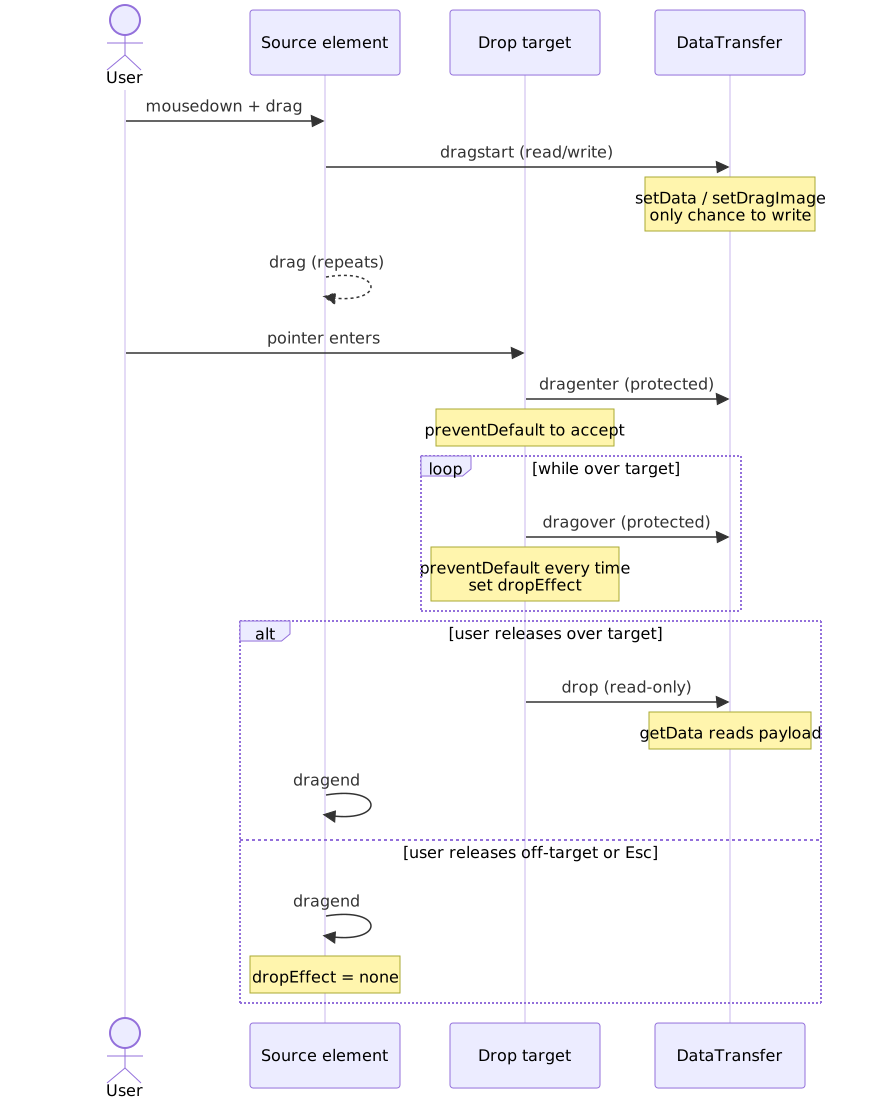
DataTransfer security model: The protected mode described above exists so that a malicious page cannot read data the user is dragging from another origin or another application during dragover. Scripts can still enumerate the available formats (dataTransfer.types), which is exactly what drop targets need to decide whether to accept the drop.
// Complete native drag implementationfunction createDragSource(element: HTMLElement, itemId: string): void { element.draggable = true element.addEventListener("dragstart", (e) => { e.dataTransfer!.effectAllowed = "move" e.dataTransfer!.setData("application/x-item-id", itemId) e.dataTransfer!.setData("text/plain", itemId) // Fallback for external drops element.classList.add("dragging") }) element.addEventListener("dragend", () => { element.classList.remove("dragging") })}function createDropTarget(element: HTMLElement, onDrop: (itemId: string, position: "before" | "after") => void): void { element.addEventListener("dragenter", (e) => { e.preventDefault() // Required to allow drop element.classList.add("drop-target") }) element.addEventListener("dragover", (e) => { e.preventDefault() // Required for every dragover e.dataTransfer!.dropEffect = "move" }) element.addEventListener("dragleave", () => { element.classList.remove("drop-target") }) element.addEventListener("drop", (e) => { e.preventDefault() const itemId = e.dataTransfer!.getData("application/x-item-id") const rect = element.getBoundingClientRect() const position = e.clientY < rect.top + rect.height / 2 ? "before" : "after" onDrop(itemId, position) element.classList.remove("drop-target") })}Effect feedback: effectAllowed (source) and dropEffect (target) communicate what operations are valid:
| effectAllowed | dropEffect | Result |
|---|---|---|
move |
move |
Move icon cursor |
copy |
copy |
Plus icon cursor |
link |
link |
Link icon cursor |
all |
any | Target chooses |
none |
- | No drop allowed |
Pointer Events
Pointer Events Level 2 is a W3C Recommendation; Level 3 is currently a Candidate Recommendation. The spec defines a pointer as “a hardware-agnostic representation of input devices that can target a specific coordinate (or set of coordinates) on a screen”. One unified API covers mouse, touch, and pen, with multi-pointer tracking via pointerId.
Key properties beyond mouse events:
| Property | Type | Description |
|---|---|---|
pointerId |
number | Unique ID for multi-pointer tracking |
pointerType |
string | "mouse", "pen", "touch", or empty |
isPrimary |
boolean | Is this the primary pointer of its type? |
pressure |
number | 0-1, normalized pressure |
width, height |
number | Contact geometry in CSS pixels |
tiltX, tiltY |
number | Pen angle, -90 to 90 degrees |
Pointer capture: Redirect all pointer events to a specific element, even when pointer moves outside. Critical for drag operations.
// Pointer Events drag implementationinterface PointerDragState { pointerId: number startX: number startY: number currentX: number currentY: number element: HTMLElement}let dragState: PointerDragState | null = nullfunction setupPointerDrag(element: HTMLElement): void { element.addEventListener("pointerdown", (e) => { // Only handle primary pointer if (!e.isPrimary) return // Capture pointer to receive events even outside element element.setPointerCapture(e.pointerId) dragState = { pointerId: e.pointerId, startX: e.clientX, startY: e.clientY, currentX: e.clientX, currentY: e.clientY, element, } element.classList.add("dragging") }) element.addEventListener("pointermove", (e) => { if (!dragState || e.pointerId !== dragState.pointerId) return dragState.currentX = e.clientX dragState.currentY = e.clientY // Update visual position const deltaX = dragState.currentX - dragState.startX const deltaY = dragState.currentY - dragState.startY element.style.transform = `translate(${deltaX}px, ${deltaY}px)` }) element.addEventListener("pointerup", (e) => { if (!dragState || e.pointerId !== dragState.pointerId) return element.releasePointerCapture(e.pointerId) element.classList.remove("dragging") element.style.transform = "" // Determine drop target at final position const dropTarget = document.elementFromPoint(e.clientX, e.clientY) // Handle drop logic... dragState = null }) // Cancel on pointer lost (e.g., touch cancelled by palm rejection) element.addEventListener("pointercancel", (e) => { if (!dragState || e.pointerId !== dragState.pointerId) return element.releasePointerCapture(e.pointerId) element.classList.remove("dragging") element.style.transform = "" dragState = null })}Touch-action CSS: Control which touch gestures the browser handles vs. your code.
.draggable { /* Disable browser touch handling - we'll manage it */ touch-action: none;}.scrollable-container { /* Allow vertical scroll, we handle horizontal drag */ touch-action: pan-y;}Touch Events (Legacy)
Touch Events Level 2 was published as a W3C Community Group Final Report in 2024 and is explicitly designated a legacy API by the W3C Touch Events Community Group, which “strongly encourages adoption of Pointer Events”. They remain relevant only for multi-touch scenarios that genuinely need direct touch list semantics, or for code that still has to support older non-Pointer-Events browsers.
TouchList collections:
touches: All current touch points on screentargetTouches: Touch points on the event target elementchangedTouches: Touch points that changed in this event
// Touch-based drag with scroll preventionfunction setupTouchDrag(element: HTMLElement): void { let startTouch: Touch | null = null element.addEventListener( "touchstart", (e) => { // Use first touch only if (e.touches.length !== 1) return startTouch = e.touches[0] element.classList.add("dragging") }, { passive: false }, ) element.addEventListener( "touchmove", (e) => { if (!startTouch) return // Prevent scrolling during drag e.preventDefault() const touch = e.touches[0] const deltaX = touch.clientX - startTouch.clientX const deltaY = touch.clientY - startTouch.clientY element.style.transform = `translate(${deltaX}px, ${deltaY}px)` }, { passive: false }, ) // Must be non-passive to preventDefault element.addEventListener("touchend", (e) => { if (!startTouch) return const touch = e.changedTouches[0] element.classList.remove("dragging") element.style.transform = "" // Find drop target const dropTarget = document.elementFromPoint(touch.clientX, touch.clientY) // Handle drop... startTouch = null }) element.addEventListener("touchcancel", () => { element.classList.remove("dragging") element.style.transform = "" startTouch = null })}Passive event listener caveat: Touch event listeners are passive by default in modern browsers for scroll performance. To preventDefault() (required to prevent scrolling during drag), explicitly set { passive: false }.
Design Paths
Path 1: Native HTML5 DnD with Touch Backend
Architecture: Use HTML5 Drag and Drop API for desktop, add separate touch event handling for mobile.
Desktop: element → dragstart/dragover/drop → DataTransfer → drop handlerMobile: element → touchstart/touchmove/touchend → custom state → drop handlerHow it works:
- Set
draggable="true"on elements - Handle native drag events for mouse interaction
- Detect touch devices and add touch event listeners
- Maintain unified drop target registry for both paths
Best for:
- Cross-tab or cross-window dragging (only native DnD supports this)
- File drops from desktop
- Simple list reordering with existing touch library
Implementation complexity:
| Aspect | Effort |
|---|---|
| Initial setup | Medium |
| Touch support | High (separate code path) |
| Keyboard accessibility | High (manual) |
| Cross-browser testing | High |
Device/network profile:
- Works well on: Desktop browsers, modern mobile with touch backend
- Struggles on: Complex nested drag targets, virtualized lists
Trade-offs:
- Pro: Native OS integration (cross-window drag, file drops)
- Pro: Browser-managed drag preview
- Con: Two code paths to maintain
- Con: DataTransfer quirks across browsers
- Con: No touch support without additional library
Real-world example: Sortable.js uses this approach — native DnD on desktop with a touch adapter. ~14.7 kB gzipped (v1.15.6, per Bundlephobia), no framework dependency.
Path 2: Custom Pointer Events Implementation
Architecture: Bypass native DnD entirely. Build drag system on Pointer Events for consistent cross-device behavior.
pointerdown → capture → pointermove (throttled) → hit test drop targets → pointerup → commitHow it works:
- Listen for
pointerdownon draggable elements - Capture pointer to receive events outside element bounds
- Track position via
pointermove, update preview position - Hit-test drop targets using
document.elementFromPoint() - Commit changes on
pointerup
Best for:
- Consistent behavior across all input types
- Complex drag interactions (nested lists, kanban boards)
- Applications requiring fine-grained control
Implementation complexity:
| Aspect | Effort |
|---|---|
| Initial setup | High |
| Touch support | Built-in (same code path) |
| Keyboard accessibility | Medium (framework typically provides) |
| Cross-browser testing | Low (consistent API) |
Trade-offs:
- Pro: Single code path for all devices
- Pro: Full control over drag preview and feedback
- Pro: No DataTransfer timing issues
- Con: No cross-window drag support
- Con: Must implement file drop separately
- Con: More code to write/maintain
Real-world example: dnd-kit uses this architecture. Its sensor system abstracts input types — PointerSensor, MouseSensor, TouchSensor, KeyboardSensor — and the PointerSensor explicitly avoids the HTML5 Drag and Drop API in favor of native PointerEvents. Built-in accessibility with keyboard navigation and screen reader announcements. @dnd-kit/core is ~14.2 kB gzipped per Bundlephobia; a sortable setup with @dnd-kit/sortable and @dnd-kit/modifiers runs closer to ~25 kB.
Path 3: Hybrid with Library Abstraction
Architecture: Use library that abstracts backend differences. Declarative API, implementation details hidden.
<Draggable> → Library internals → Backend (HTML5/Touch/Keyboard) → <Droppable>How it works:
- Wrap draggable elements with library component/hook
- Register drop targets with acceptance criteria
- Library handles input detection and routes to appropriate backend
- Render functions receive drag state for visual feedback
Best for:
- Teams wanting production-ready solution quickly
- Applications needing all features (keyboard, touch, mouse)
- Complex interactions without low-level concerns
Implementation complexity:
| Aspect | Effort |
|---|---|
| Initial setup | Low |
| Touch support | Built-in |
| Keyboard accessibility | Built-in or configurable |
| Cross-browser testing | Low (library handles) |
Trade-offs:
- Pro: Fastest time to production
- Pro: Maintained by community/company
- Pro: Accessibility often built-in
- Con: Bundle size overhead
- Con: Less control over edge cases
- Con: Learning library-specific patterns
Library comparison (sizes are gzipped, sourced from Bundlephobia and library docs as of 2026-Q1; treat them as orders of magnitude — your effective size depends on which sub-packages you import):
| Library | Browser API | Approach | Bundled size | Accessibility | Framework |
|---|---|---|---|---|---|
| react-dnd | HTML5 DnD (default) | Backend abstraction (HTML5 / Touch) | ~25 kB with react-dnd-html5-backend |
Manual | React |
| dnd-kit | Pointer Events | Sensor abstraction | ~14 kB core, ~25 kB with sortable & modifiers | Built-in keyboard sensor + announcements | React |
| Sortable.js | HTML5 DnD + touch adapter | DOM mutation | ~14.7 kB | Manual | Vanilla |
| @atlaskit/pragmatic-drag-and-drop | HTML5 DnD | Thin native wrappers + adapters | ~4.7 kB core, optional packages on top | Optional accessibility add-on | Any |
| react-aria/dnd | HTML5 DnD + bespoke a11y | Hooks over native DnD with parity for keyboard/screen reader | Comparable to dnd-kit in real apps | Built-in (designed accessibility-first) | React |
Note
Two common misreadings: (1) Pragmatic Drag and Drop is built on the native HTML5 Drag and Drop API — that is the whole point of “pragmatic”, which is why it gets cross-window drag and file drops for free. It is not a Pointer-Events implementation. (2) React Aria’s drag and drop also uses native HTML DnD under the hood for pointer/touch and only owns the keyboard/screen reader path itself — see Adobe’s “Taming the dragon” write-up.
Warning
react-beautiful-dnd was archived on 2025-08-18 and now logs a deprecation warning at install. Atlassian routes new work to Pragmatic Drag and Drop; the community-maintained fork @hello-pangea/dnd is the drop-in option for code that genuinely cannot migrate. Do not start a new project on react-beautiful-dnd.
Decision Framework
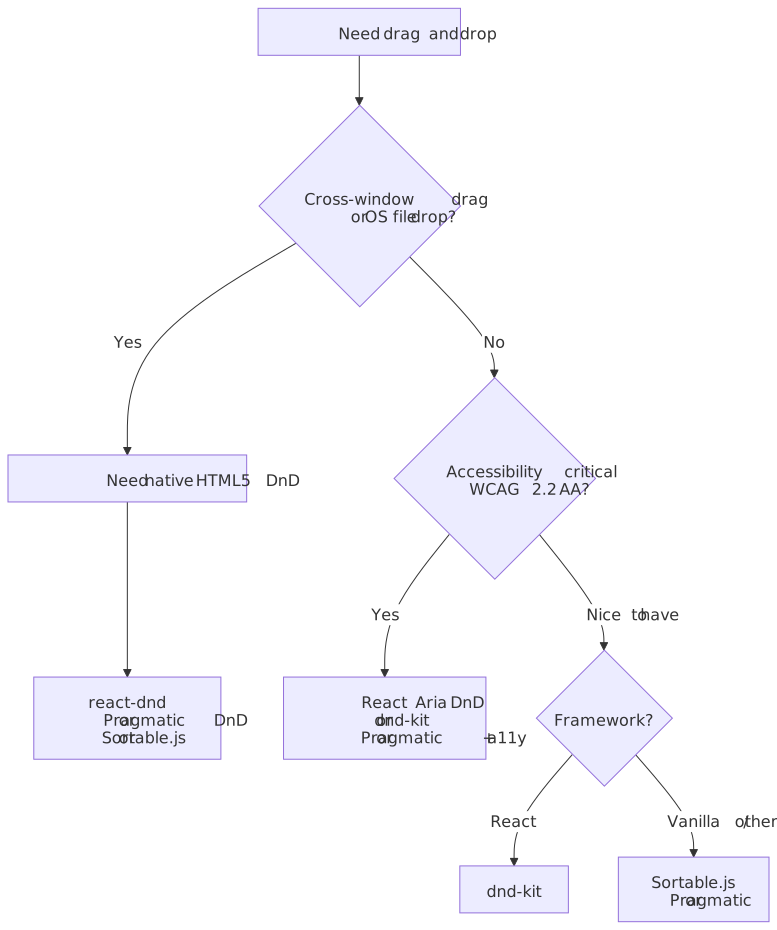
Implementing Core Patterns
List Reordering
The most common drag-drop pattern: reorder items within a single list.
State management: Track source index, current hover index, and compute final order on drop.
interface SortableListState<T> { items: T[] dragIndex: number | null hoverIndex: number | null}function useSortableList<T extends { id: string }>( initialItems: T[],): { items: T[] dragHandlers: (index: number) => DragHandlers dropHandlers: (index: number) => DropHandlers} { const [state, setState] = useState<SortableListState<T>>({ items: initialItems, dragIndex: null, hoverIndex: null, }) const dragHandlers = (index: number) => ({ onDragStart: () => { setState((s) => ({ ...s, dragIndex: index })) }, onDragEnd: () => { setState((s) => { if (s.dragIndex === null || s.hoverIndex === null) { return { ...s, dragIndex: null, hoverIndex: null } } // Reorder items const newItems = [...s.items] const [removed] = newItems.splice(s.dragIndex, 1) newItems.splice(s.hoverIndex, 0, removed) return { items: newItems, dragIndex: null, hoverIndex: null } }) }, }) const dropHandlers = (index: number) => ({ onDragEnter: () => { setState((s) => ({ ...s, hoverIndex: index })) }, }) return { items: state.items, dragHandlers, dropHandlers }}Visual indicator placement: Show drop indicator between items, not on items.
function getDropIndicatorPosition(e: PointerEvent, element: HTMLElement): "before" | "after" { const rect = element.getBoundingClientRect() const midpoint = rect.top + rect.height / 2 return e.clientY < midpoint ? "before" : "after"}Drop-Target Hit Testing
Once you leave HTML5 DnD (where the browser does its own hit-testing for you), the library has to decide which droppable the active drag is “over”. There are three workable strategies, with very different cost/precision profiles.
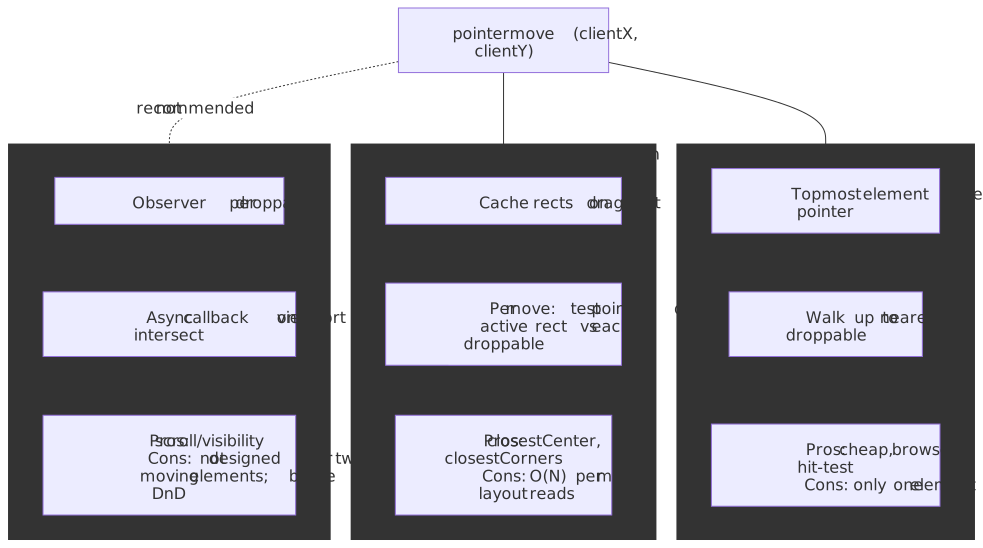
| Strategy | Cost per move | Precision | Notes |
|---|---|---|---|
document.elementFromPoint(x, y) |
O(1) — one browser hit-test | Top-most element only | Cheap and accurate, but you have to walk up to the nearest droppable and you cannot resolve overlapping or pointer-events: none previews. elementsFromPoint (note the plural) returns the full stack and is well-supported in modern engines. |
Cached getBoundingClientRect() intersection |
O(N) over N droppables, but rects are cached on dragstart |
Full control — supports rectIntersection, closestCenter, closestCorners, area-overlap |
What dnd-kit’s collision detection ships by default. The cost knob is cache invalidation: scroll, resize, and layout shift during a drag invalidate cached rects. |
IntersectionObserver |
Async, off-main-thread | Only viewport / ancestor intersection | Designed for visibility, not collision between two moving elements. Workarounds (probe elements per droppable) tend to be brittle — avoid for the active drag, but useful for registering what is currently in-viewport before you cache rects. |
Tip
Cache getBoundingClientRect() for every registered droppable on pointerdown/dragstart, then re-cache on scroll or resize events you intercept yourself. The dominant cost in production drag systems is not collision math — it is forgetting to invalidate the cache when an item being dragged shifts the layout of items it has not yet passed.
Cross-Container Dragging
Moving items between multiple lists (Kanban boards, multi-column layouts).
Key challenge: Tracking which container an item is over, handling container-level acceptance rules.
interface Container { id: string accepts: (item: DragItem) => boolean}interface DragItem { id: string type: string sourceContainerId: string}interface CrossContainerState { containers: Map<string, Container> activeItem: DragItem | null overContainerId: string | null overIndex: number | null}function handleCrossContainerDrop( state: CrossContainerState, sourceItems: Map<string, unknown[]>, setItems: (containerId: string, items: unknown[]) => void,): void { const { activeItem, overContainerId, overIndex } = state if (!activeItem || !overContainerId || overIndex === null) return const targetContainer = state.containers.get(overContainerId) if (!targetContainer?.accepts(activeItem)) return // Remove from source const sourceList = [...(sourceItems.get(activeItem.sourceContainerId) ?? [])] const sourceIndex = sourceList.findIndex((item: any) => item.id === activeItem.id) const [removed] = sourceList.splice(sourceIndex, 1) setItems(activeItem.sourceContainerId, sourceList) // Add to target const targetList = [...(sourceItems.get(overContainerId) ?? [])] targetList.splice(overIndex, 0, removed) setItems(overContainerId, targetList)}Acceptance rules: Containers can restrict what items they accept.
const containers: Container[] = [ { id: "todo", accepts: (item) => item.type === "task", }, { id: "done", accepts: (item) => item.type === "task" && item.status !== "blocked", }, { id: "archive", accepts: () => true, // Accepts anything },]Tree Reordering
Hierarchical structures with nesting (file trees, nested lists).
Complexity factors:
- Drop zones: before sibling, after sibling, as child
- Depth detection from pointer position
- Preventing invalid drops (item into its own descendants)
interface TreeNode { id: string children: TreeNode[] parentId: string | null}type TreeDropPosition = | { type: "before"; targetId: string } | { type: "after"; targetId: string } | { type: "child"; parentId: string }function getTreeDropPosition(e: PointerEvent, element: HTMLElement, depthIndicatorWidth: number): TreeDropPosition { const rect = element.getBoundingClientRect() const relativeY = e.clientY - rect.top const relativeX = e.clientX - rect.left const nodeId = element.dataset.nodeId! const currentDepth = parseInt(element.dataset.depth ?? "0") // Top quarter: drop before if (relativeY < rect.height * 0.25) { return { type: "before", targetId: nodeId } } // Bottom quarter: drop after if (relativeY > rect.height * 0.75) { return { type: "after", targetId: nodeId } } // Middle: check horizontal position for nesting const hoverDepth = Math.floor(relativeX / depthIndicatorWidth) if (hoverDepth > currentDepth) { return { type: "child", parentId: nodeId } } return { type: "after", targetId: nodeId }}function isDescendant(tree: TreeNode[], nodeId: string, potentialAncestorId: string): boolean { const findNode = (nodes: TreeNode[], id: string): TreeNode | null => { for (const node of nodes) { if (node.id === id) return node const found = findNode(node.children, id) if (found) return found } return null } const ancestor = findNode(tree, potentialAncestorId) if (!ancestor) return false return findNode(ancestor.children, nodeId) !== null}Virtualized List Dragging
Large lists with windowing present unique challenges: elements outside viewport don’t exist in DOM.
Problem: Standard hit-testing fails when potential drop targets aren’t rendered.
Solutions:
- Overscan: Render extra items beyond viewport. Simple but memory overhead.
- Position-based hit testing: Calculate target from scroll position, not DOM.
- Scroll-on-drag: Auto-scroll when dragging near edges.
interface VirtualListDragConfig { itemHeight: number totalItems: number viewportHeight: number scrollTop: number scrollContainerRef: React.RefObject<HTMLElement>}function getVirtualDropIndex(clientY: number, config: VirtualListDragConfig): number { const { itemHeight, totalItems, scrollTop, scrollContainerRef } = config const container = scrollContainerRef.current if (!container) return 0 const containerRect = container.getBoundingClientRect() const relativeY = clientY - containerRect.top + scrollTop const index = Math.floor(relativeY / itemHeight) return Math.max(0, Math.min(totalItems - 1, index))}function handleAutoScroll(clientY: number, config: VirtualListDragConfig): void { const container = config.scrollContainerRef.current if (!container) return const rect = container.getBoundingClientRect() const edgeThreshold = 50 // pixels const scrollSpeed = 10 if (clientY < rect.top + edgeThreshold) { // Near top edge - scroll up container.scrollTop -= scrollSpeed } else if (clientY > rect.bottom - edgeThreshold) { // Near bottom edge - scroll down container.scrollTop += scrollSpeed }}Drag Preview and Visual Feedback
Native vs Custom Drag Images
Native drag image (HTML5 DnD): Browser captures element snapshot at dragstart. Limited customization.
// Basic custom drag imageelement.addEventListener("dragstart", (e) => { const preview = createCustomPreview() document.body.appendChild(preview) preview.style.position = "absolute" preview.style.left = "-9999px" // Offset positions the cursor relative to the image e.dataTransfer?.setDragImage(preview, 20, 20) requestAnimationFrame(() => preview.remove())})Custom drag layer (Pointer Events approach): Render preview element that follows pointer.
interface DragPreviewState { isDragging: boolean; item: unknown; x: number; y: number;}function DragPreview({ state }: { state: DragPreviewState }) { if (!state.isDragging) return null; return ( <div style={{ position: 'fixed', left: state.x, top: state.y, pointerEvents: 'none', // Don't block hit testing transform: 'translate(-50%, -50%) rotate(3deg)', // Slight rotation opacity: 0.9, zIndex: 9999 }} > <ItemCard item={state.item} /> </div> );}Performance consideration: Moving a DOM element every pointermove (60+ times/second) can cause jank. Use transform instead of left/top—it’s GPU-accelerated and doesn’t trigger layout.
Drop Indicators
Visual feedback showing where the item will land.
Line indicator: Horizontal line between items.
.drop-indicator { position: absolute; left: 0; right: 0; height: 2px; background: var(--color-accent); pointer-events: none;}.drop-indicator--before { top: -1px;}.drop-indicator--after { bottom: -1px;}Placeholder gap: Reserve space where item will drop.
function renderItems(items: Item[], dragIndex: number | null, hoverIndex: number | null) { return items.map((item, index) => { const isDragging = index === dragIndex; const showGapBefore = hoverIndex === index && dragIndex !== null && dragIndex > index; const showGapAfter = hoverIndex === index && dragIndex !== null && dragIndex < index; return ( <> {showGapBefore && <div className="drop-gap" />} <ItemCard key={item.id} item={item} style={{ opacity: isDragging ? 0.5 : 1 }} /> {showGapAfter && <div className="drop-gap" />} </> ); });}Animation Patterns
Layout shift animation: Animate other items moving out of the way.
.sortable-item { transition: transform 200ms ease;}.sortable-item--shifted-down { transform: translateY(var(--item-height));}.sortable-item--shifted-up { transform: translateY(calc(-1 * var(--item-height)));}Drop animation: Animate item settling into final position.
async function animateDrop( element: HTMLElement, from: { x: number; y: number }, to: { x: number; y: number },): Promise<void> { const deltaX = to.x - from.x const deltaY = to.y - from.y // Start at drag position element.style.transform = `translate(${-deltaX}px, ${-deltaY}px)` element.style.transition = "none" // Force reflow element.offsetHeight // Animate to final position element.style.transition = "transform 200ms ease-out" element.style.transform = "" return new Promise((resolve) => { element.addEventListener("transitionend", () => resolve(), { once: true }) })}Accessibility Implementation
Keyboard Navigation
WCAG-compliant drag-drop requires full keyboard support.
Interaction pattern:
- Focus item with Tab
- Press Enter/Space to “pick up” item
- Arrow keys or Tab to move between positions
- Enter/Space to “drop” or Escape to cancel
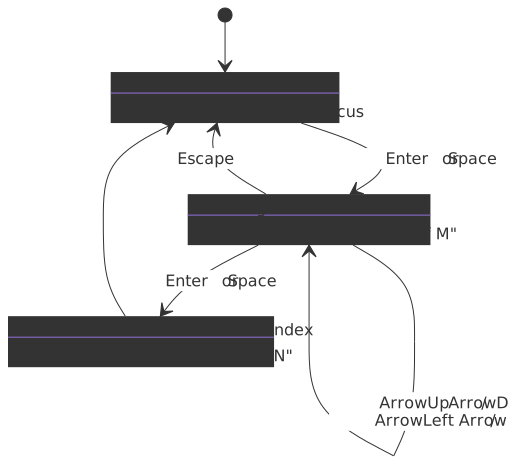
interface KeyboardDragState { isActive: boolean activeItemId: string | null targetIndex: number | null}function useKeyboardDrag(items: Item[], onReorder: (fromIndex: number, toIndex: number) => void) { const [state, setState] = useState<KeyboardDragState>({ isActive: false, activeItemId: null, targetIndex: null, }) const handleKeyDown = (e: KeyboardEvent, itemId: string, currentIndex: number) => { if (!state.isActive) { // Not dragging - Enter starts drag if (e.key === "Enter" || e.key === " ") { e.preventDefault() setState({ isActive: true, activeItemId: itemId, targetIndex: currentIndex, }) announceToScreenReader(`Grabbed ${items[currentIndex].name}. Use arrow keys to move.`) } return } // Currently dragging switch (e.key) { case "ArrowUp": case "ArrowLeft": e.preventDefault() if (state.targetIndex! > 0) { const newIndex = state.targetIndex! - 1 setState((s) => ({ ...s, targetIndex: newIndex })) announceToScreenReader(`Position ${newIndex + 1} of ${items.length}`) } break case "ArrowDown": case "ArrowRight": e.preventDefault() if (state.targetIndex! < items.length - 1) { const newIndex = state.targetIndex! + 1 setState((s) => ({ ...s, targetIndex: newIndex })) announceToScreenReader(`Position ${newIndex + 1} of ${items.length}`) } break case "Enter": case " ": e.preventDefault() const fromIndex = items.findIndex((i) => i.id === state.activeItemId) onReorder(fromIndex, state.targetIndex!) setState({ isActive: false, activeItemId: null, targetIndex: null }) announceToScreenReader(`Dropped at position ${state.targetIndex! + 1}`) break case "Escape": e.preventDefault() setState({ isActive: false, activeItemId: null, targetIndex: null }) announceToScreenReader("Drag cancelled") break } } return { state, handleKeyDown }}Screen Reader Announcements
Use ARIA live regions to announce drag state changes.
function announceToScreenReader(message: string): void { let announcer = document.getElementById("drag-announcer") if (!announcer) { announcer = document.createElement("div") announcer.id = "drag-announcer" announcer.setAttribute("aria-live", "assertive") announcer.setAttribute("aria-atomic", "true") announcer.style.cssText = ` position: absolute; width: 1px; height: 1px; padding: 0; margin: -1px; overflow: hidden; clip: rect(0, 0, 0, 0); white-space: nowrap; border: 0; ` document.body.appendChild(announcer) } // Clear and set to ensure announcement announcer.textContent = "" requestAnimationFrame(() => { announcer!.textContent = message })}Announcement timing:
| Event | Announcement |
|---|---|
| Drag start | ”Grabbed [item name]. Use arrow keys to move, Enter to drop, Escape to cancel.” |
| Position change | ”Position [n] of [total]” or “[item name] moved before [other item]“ |
| Drop | ”Dropped [item name] at position [n]“ |
| Cancel | ”Drag cancelled. [item name] returned to position [n]“ |
| Invalid drop | ”[target] does not accept [item type]“ |
ARIA Attributes
<!-- Draggable item --><div role="listitem" tabindex="0" aria-grabbed="false" aria-describedby="drag-instructions">Item content</div><!-- When being dragged --><div role="listitem" tabindex="0" aria-grabbed="true" aria-describedby="drag-instructions">Item content</div><!-- Drop target --><div role="list" aria-dropeffect="move"> <!-- items --></div><!-- Instructions (hidden visually) --><div id="drag-instructions" class="sr-only"> Press Enter to grab. Use arrow keys to move. Press Enter to drop or Escape to cancel.</div>Warning
aria-grabbed and aria-dropeffect were deprecated in WAI-ARIA 1.1 and are under active discussion for removal in ARIA 1.3. Assistive technology support has always been poor. Use them only for legacy compatibility — the load-bearing accessibility comes from focus management and ARIA live region announcements.
Real-World Implementations
Trello: Kanban Board
Challenge: Drag cards between multiple lists with smooth animations and real-time sync.
Approach (observable behavior; Trello has rotated through several internal libraries over the years):
- Drop zones on each card and at list bottom.
- Visual feedback: card tilts slightly during drag (the well-known “jaunty angle”).
- Optimistic updates with server reconciliation; failures roll the card back.
Technical details:
- Each card has a
posattribute exposed by the public Trello API, stored as a 64-bit floating-point number (HN discussion of the format). - Inserting between two cards averages the neighbors’
posvalues, so reorders are anO(1)API call instead of anO(n)re-index. - When
posgaps shrink below the float-precision threshold, a background job rebalances the affected list (Hacker News thread). - Updates broadcast to other clients via WebSocket so collaborators see moves in real time.
Key insight: Floating-point pos with rebalancing trades per-write cost for occasional bulk maintenance — a classic “fractional indexing” pattern that decouples drag UX from server load.
Notion: Block Reordering
Challenge: Every piece of content is a draggable, nestable block. Blocks can be text, images, databases, or embedded content.
Observable behavior:
- Drag handle (six dots) appears on hover.
- Multi-block selection with Shift+click; Alt/Option+drag creates a duplicate.
- Horizontal drag position determines nesting depth in toggles and lists.
- Drag preview shows a block outline, not the full content; drop indicator style changes by nesting level.
Architecture (from Notion’s “data model behind Notion” post):
- Every piece of content is a block with a UUID, a
parentpointer, and an ordered list ofcontent(child block IDs). Blocks form a render tree. - User actions are encoded as discrete operations against that tree, batched into transactions, persisted in an append-only log on the server, and pushed to other clients over WebSockets.
- Concurrent edits are merged with a hybrid strategy: tree-structure operations lean on operation-based sync with the server as serialization point, while character-level text edits use CRDT-style merging for offline tolerance6.
Key insight: Notion’s drag operates on block identity, not DOM nodes. Reparenting is just a server operation that updates parent and rewrites the source and destination content arrays, which is why drags survive page reloads and collaborator edits without bespoke client code.
Figma: Canvas Objects
Challenge: Drag objects on infinite canvas with zoom, precision positioning, and multi-select.
Architecture (from Figma’s engineering blog and the Pragmatic Engineer interview with the Figma Slides team):
- Core editor is a C++ engine compiled to WebAssembly that draws to an HTML
<canvas>via WebGL — and now WebGPU where supported. - Surrounding UI (layer list, properties panel, modals) is React + TypeScript talking to the engine through a bindings layer.
- Custom hit-testing against the scene graph rather than
elementFromPoint; the canvas knows nothing about DOM.
Implementation details:
- Drag threshold (a few pixels) prevents accidental moves on click.
- Snap-to-grid and smart guides are computed every frame against neighbors.
- Undo stack captures a drag as a single operation.
Key insight: For canvas-style apps, no off-the-shelf drag library covers the load-bearing path. The renderer owns coordinates, the engine owns hit-testing, and you reach for a library only on the chrome.
VS Code: File Tree and Tabs
Challenge: Drag files between explorer, editors, and terminals; also accept files dragged in from the OS.
Approach (visible in src/vs/workbench/browser/dnd.ts):
- Custom implementation built on a
LocalSelectionTransfersingleton for same-window drags. - Native HTML5 DnD for external file drops, which is the only way to receive OS file drops.
- Typed drag identifiers —
DraggedEditorIdentifierfor a single editor,DraggedEditorGroupIdentifierfor a tab group.
Technical details:
LocalSelectionTransferis a singleton keyed by drag-payload type; it lets the source set typed payload data and the target read it back without going throughDataTransfer(which is locked down outsidedragstart/drop).EditorDropTargetcomponents register as drop zones.- The file tree supports dragging into and out of folders; tabs support reordering across editor groups.
- For extensions, the public surface area is the
TreeDragAndDropControllerandDocumentDropEditProviderAPIs, which wrap a smallervscode.DataTransferabstraction.
Key insight: VS Code uses two drag mechanisms in parallel — a process-local typed channel for in-app drags (avoids DataTransfer quirks) and native DataTransfer for OS interop (the only way to accept files). This is the same pattern most desktop-class web apps converge on.
Browser Constraints
Main Thread Budget
Drag operations run on main thread. Heavy operations cause jank.
Budget: 16ms per frame for 60fps. Drag handlers should complete in <8ms to leave room for rendering.
Optimization strategies:
- Throttle pointermove: Don’t process every event
- Debounce drop target calculations: Especially for complex hit-testing
- RAF for visual updates: Batch position updates to animation frame
- Avoid layout thrashing: Read dimensions before starting drag, cache them
// Throttled drag handlerlet lastMoveTime = 0const THROTTLE_MS = 16 // One framefunction handlePointerMove(e: PointerEvent): void { const now = performance.now() if (now - lastMoveTime < THROTTLE_MS) return lastMoveTime = now // Actual move handling updateDragPosition(e.clientX, e.clientY)}Touch Delay and Gesture Conflicts
The classic 300ms tap delay is essentially gone on modern mobile browsers as long as you ship a proper viewport meta tag (<meta name="viewport" content="width=device-width">) or apply touch-action: manipulation to interactive elements. Chrome documented the change in “300ms tap delay, gone away”; legacy polyfills like FastClick are no longer needed and may even hurt. Touch gestures (pan, pinch, double-tap-to-zoom) still conflict with drag, so you still need touch-action and activation constraints.
Activation constraints prevent accidental drags:
interface ActivationConstraint { delay?: number // ms to hold before drag starts distance?: number // px to move before drag starts tolerance?: number // px of movement allowed during delay}// dnd-kit sensor configurationconst pointerSensor = useSensor(PointerSensor, { activationConstraint: { delay: 250, // Hold 250ms before drag activates tolerance: 5, // Allow 5px movement during delay },})Memory Considerations
Long drag operations with many drop targets can accumulate state.
Cleanup patterns:
- Clear highlight states on
pointercancel - Remove event listeners when drag ends
- Reset animations to avoid stale transforms
- Clear cached dimensions if window resizes during drag
function cleanupDragState(): void { // Reset all visual states document.querySelectorAll(".drop-target-active").forEach((el) => { el.classList.remove("drop-target-active") }) // Clear cached data dropTargetRects.clear() // Remove global listeners document.removeEventListener("pointermove", handleGlobalMove) document.removeEventListener("pointerup", handleGlobalUp)}Common Pitfalls
1. Missing preventDefault in dragover
The mistake: Only calling preventDefault() in drop handler.
// Broken - drop never fireselement.addEventListener("drop", (e) => { e.preventDefault() handleDrop(e)})Why it fails: Browser requires preventDefault() in dragenter AND dragover to mark element as valid drop target. Without it, drop event never fires.
The fix:
element.addEventListener("dragenter", (e) => e.preventDefault())element.addEventListener("dragover", (e) => e.preventDefault())element.addEventListener("drop", (e) => { e.preventDefault() handleDrop(e)})2. Drag Image Not Visible
The mistake: Creating drag image dynamically without adding to DOM.
// Broken in Chromeelement.addEventListener("dragstart", (e) => { const img = document.createElement("div") img.textContent = "Dragging" e.dataTransfer?.setDragImage(img, 0, 0) // Invisible})Why it fails: Chrome requires the drag image element to be in the DOM and have layout. Firefox doesn’t.
The fix:
element.addEventListener("dragstart", (e) => { const img = document.createElement("div") img.textContent = "Dragging" img.style.position = "absolute" img.style.left = "-9999px" document.body.appendChild(img) e.dataTransfer?.setDragImage(img, 0, 0) requestAnimationFrame(() => img.remove())})3. Touch Events Not Firing
The mistake: Assuming HTML5 DnD works on touch devices.
// Only works with mouseelement.draggable = trueelement.addEventListener("dragstart", handleDragStart)// Touch users see nothingWhy it fails: HTML5 Drag and Drop API is mouse-only. Touch events don’t trigger drag events.
The fix: Use Pointer Events or add explicit touch handling:
element.addEventListener("pointerdown", handlePointerDown)// ORelement.addEventListener("touchstart", handleTouchStart, { passive: false })4. Passive Event Listener Blocking preventDefault
The mistake: Touch events added without { passive: false }.
// preventDefault has no effectelement.addEventListener("touchmove", (e) => { e.preventDefault() // Ignored! Scrolls anyway handleDrag(e)})Why it fails: Modern browsers make touch listeners passive by default for scroll performance. Passive listeners cannot preventDefault().
The fix:
element.addEventListener( "touchmove", (e) => { e.preventDefault() handleDrag(e) }, { passive: false },)5. State Desync with Optimistic Updates
The mistake: Updating UI before server confirms, then not handling failures.
// Optimistic update without rollbackfunction handleDrop(fromIndex: number, toIndex: number): void { setItems(reorder(items, fromIndex, toIndex)) api.updateOrder(items.map((i) => i.id)) // Fire and forget}Why it fails: Server rejection leaves UI in wrong state. Network failure loses the change.
The fix:
function handleDrop(fromIndex: number, toIndex: number): void { const previousItems = items const newItems = reorder(items, fromIndex, toIndex) setItems(newItems) // Optimistic api .updateOrder(newItems.map((i) => i.id)) .then((serverOrder) => setItems(serverOrder)) // Reconcile against canonical state .catch(() => { setItems(previousItems) // Rollback showError("Failed to save order") })}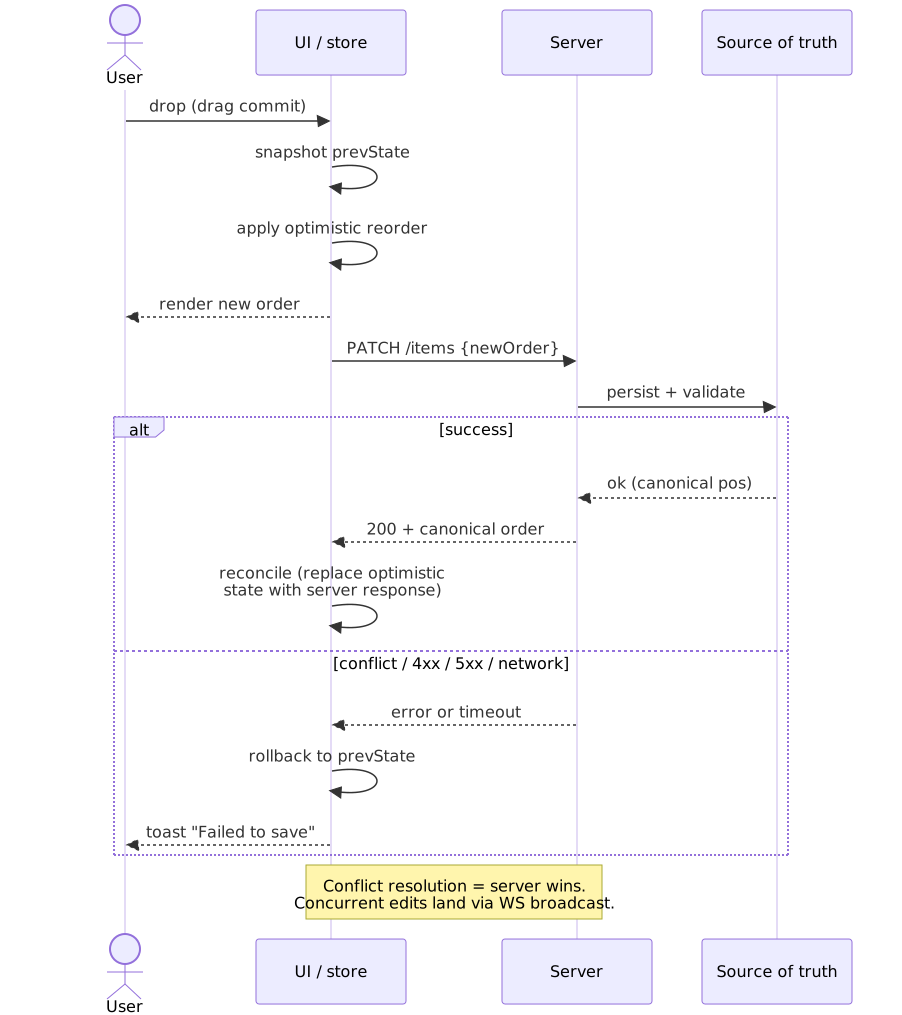
Important
“Reconcile” is not “no-op on success”. The server’s response is the canonical order — for fractional-position schemes (Trello, Notion, Figma), the server may return a position different from the one you optimistically computed (rebalance, conflict, concurrent edit). Always replace the optimistic state with the server response on success, otherwise drift accumulates silently across drags.
Conclusion
Drag and drop systems require unifying disparate browser APIs while maintaining accessibility. The fundamental tension: native HTML5 DnD provides OS-level integration (cross-window drag, file drops) but lacks touch support and carries real cross-browser quirks. Pointer-Events implementations provide consistent behavior across input devices but cannot accept files dragged from the OS without falling back to native DnD anyway.
Architectural decisions:
API layer: Native HTML5 DnD when you need file drops or cross-window/cross-tab drag. Pointer Events when you need consistent multi-device behavior and don’t need OS integration. Many applications want both, isolated behind a small adapter.
Library vs custom: Libraries (dnd-kit, Pragmatic Drag and Drop, react-dnd, Sortable.js, React Aria) all encode hard-won workarounds for the underlying APIs and are the right default. Custom implementation only when you have unusual requirements — canvas-based rendering, multi-pointer gestures, or extreme bundle-size constraints.
Accessibility: Not optional. WCAG 2.5.7 requires a single-pointer alternative; WCAG 2.1.1 requires a keyboard path. Build both in from the start — retrofitting is harder, and at least one (the single-pointer one) is easy to forget.
Visual feedback: Users need constant feedback during drag — drag preview follows the cursor, drop indicators show destination, animations smooth transitions. Without feedback, drag operations feel broken even when they’re working correctly.
The current production split is roughly: dnd-kit and React Aria for Pointer-Events-first React stacks; Pragmatic Drag and Drop for framework-agnostic native-DnD work; Sortable.js for tiny vanilla apps; react-dnd in legacy code that nobody is rewriting. Pick by which API you need underneath, not by feature checklist alone — that decision flows backwards into everything else, including how much accessibility code you’ll have to write yourself.
Appendix
Prerequisites
- DOM events: Event propagation, delegation, preventDefault
- CSS transforms: translate, transform-origin, GPU acceleration
- Browser input APIs: Basic familiarity with mouse, touch, or pointer events
- React hooks (if using React-based libraries)
Terminology
- DataTransfer: HTML5 DnD object carrying data between drag source and drop target
- Drag handle: UI element that initiates drag (often a grip icon)
- Drop indicator: Visual marker showing where dragged item will land
- Hit testing: Determining which element is under the pointer
- Pointer capture: API to receive all pointer events for a specific pointer ID
- Sensor: dnd-kit abstraction for input type (pointer, touch, keyboard)
Summary
- HTML5 DnD limitations: Mouse and pen only, three-mode
DataTransferlifecycle, no touch support without separate implementation, OS-level features (cross-window, file drop) only available here. - Pointer Events advantage: Single API for mouse, touch, and pen; pointer capture for reliable drag tracking when the cursor leaves the element.
- Accessibility requirement: WCAG 2.5.7 mandates a single-pointer (click/tap) alternative; WCAG 2.1.1 requires a keyboard path. Both are required.
- Library API split: HTML5 DnD wrappers (react-dnd, Sortable.js, Pragmatic Drag and Drop) vs Pointer-Events implementations (dnd-kit, React Aria-managed pointer/touch is HTML5 underneath).
- Visual feedback: Drag preview, drop indicators, and layout-shift animations are essential for usable drag-drop.
- Real-world patterns: Trello uses fractional
posindexing with rebalancing, Notion operates on block IDs with hybrid OT/CRDT sync, Figma renders the canvas in a custom WebAssembly engine and only uses libraries on the chrome.
References
- WHATWG HTML Standard — Drag and Drop — normative HTML5 DnD spec, including the three-mode
DataTransferlifecycle. - W3C Pointer Events Level 2 and Pointer Events Level 3 (CR) — unified pointer input specs.
- W3C Touch Events Level 2 — Community Group Final Report — Touch Events, now legacy.
- WCAG 2.5.7 Dragging Movements (WCAG 2.2, AA) and WCAG 2.1.1 Keyboard (A).
- MDN — HTML Drag and Drop API and MDN — Pointer Events.
- dnd-kit documentation and the pointer sensor reference.
- react-dnd documentation.
- Pragmatic Drag and Drop — Atlassian Design System and Atlassian’s “Designed for delight, built for performance” write-up.
- React Aria — Drag and Drop and “Taming the dragon” architecture post.
- Notion — The data model behind Notion’s flexibility.
- Figma — Rendering powered by WebGPU and Pragmatic Engineer interview on the Figma renderer.
Footnotes
-
HTML5 Drag and Drop events are not fired in response to touch on Chrome, Firefox, or Safari. The spec is silent on touch behavior, but cross-browser testing has shown this consistently for years; see “HTML5 Drag & Drop — Not the API You’re Looking For” (sam.today) and the
drag-drop-touchpolyfill README for representative test results. ↩ ↩2 -
See “Working with the drag data store” — MDN for the user-facing summary and the WHATWG drag data store mode definition for the normative description of read/write, protected, and read-only modes. ↩ ↩2
-
The relative order of
dropanddragendis not normatively pinned by the WHATWG drag-and-drop processing model. Historic browser drift was discussed in “Cross Browser HTML5 Drag and Drop” (2010) and is still raised in current bug trackers; do not depend on a specific order. ↩ -
The Chromium constraint that the drag-image element must be in the DOM and have layout is documented across implementer notes; see MDN’s
setDragImage()reference for the cross-browser caveats. ↩ -
See Vispero’s “How to test 2.5.7 Dragging Movements” and the W3C Understanding 2.5.7 document, both of which explicitly state that providing a keyboard alternative does not by itself satisfy 2.5.7 — the criterion requires a single-pointer alternative. ↩
-
Notion has not published a definitive paper on its concurrency model, but the data model post describes the operation-based sync model and tree structure. Third-party syntheses such as Educative’s “Notion System Design Explained” describe the hybrid OT-for-tree, CRDT-for-text approach; treat the specifics as informed inference rather than first-party documentation. ↩